Documentation
Storage sites, locations and the joint-storage check
You model your storage sites and their locations, place products from the register and Caventi checks continuously, per fire compartment, which storage classes may be stored together. Incompatible pairs are flagged before they become a hazard.
The storage area builds on the same product register as the risk assessment and the operating instruction: what you place are the products already captured, with their derived storage class. The joint-storage check is not a separate audit run but a verdict shown directly on each location and recomputed with every placement.
The storage directory
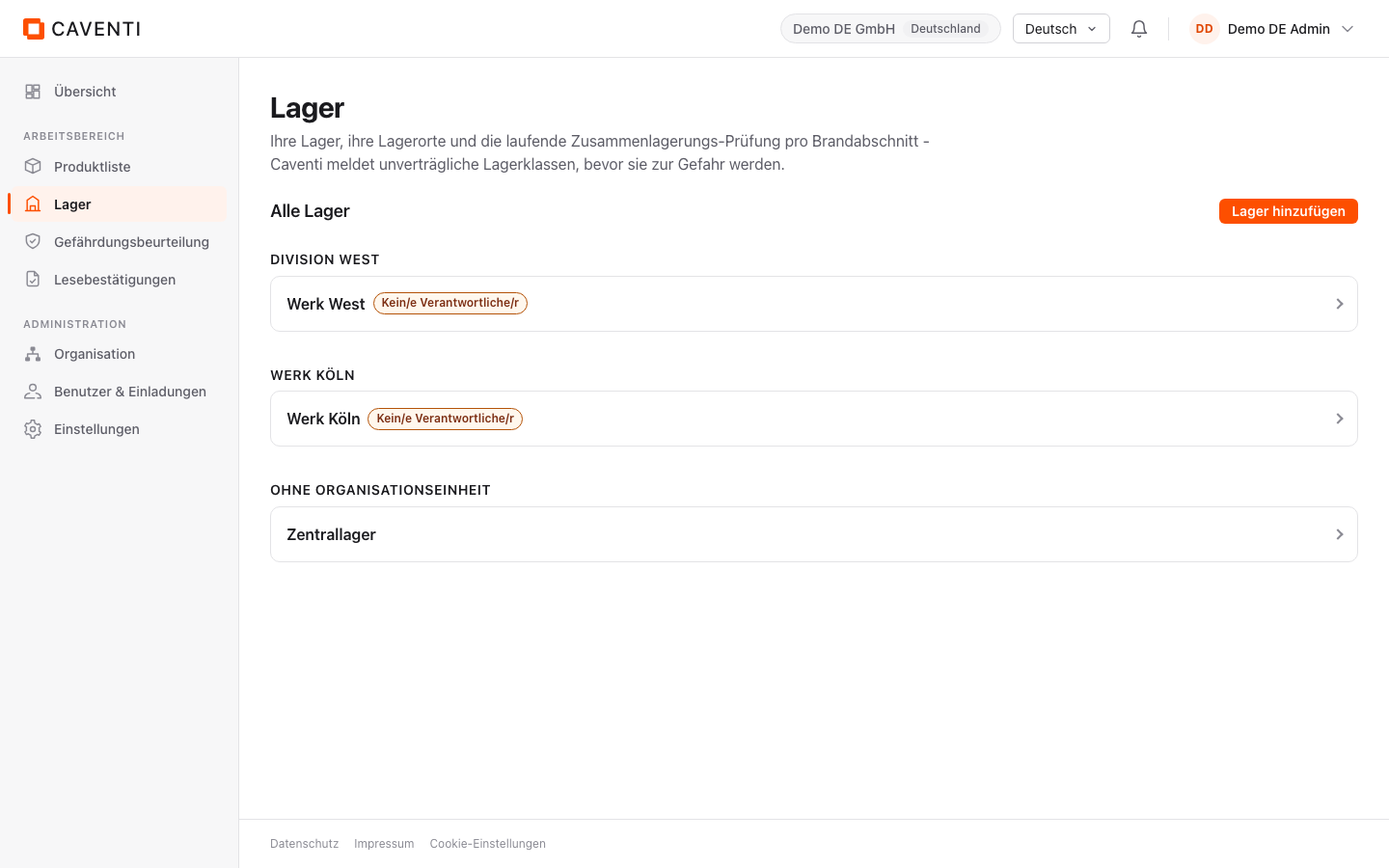
The "Lager" page (sidebar: Lager) lists under "Alle Lager" every site, grouped by the organizational unit it belongs to. Beside the unit groups (for example "DIVISION WEST" and "WERK KÖLN") there is a third group "OHNE ORGANISATIONSEINHEIT" for company-level sites with no assigned unit. Each site is a row with a chevron; when no responsible person is set, the card carries the amber "Kein/e Verantwortliche/r" badge.
Open a storage site
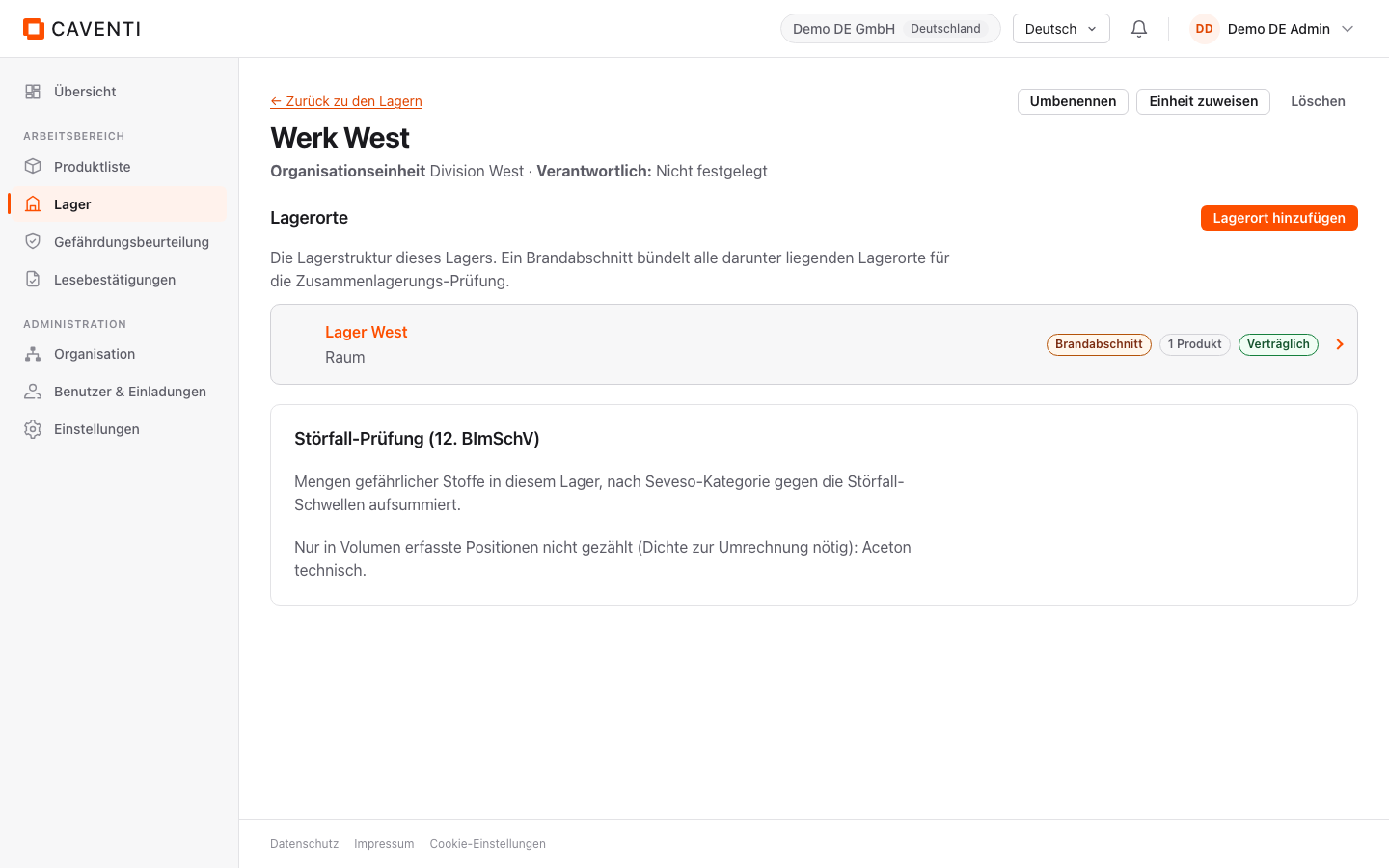
Clicking a site row opens the site. The header shows the name and the owning unit (for example "Division West"); the top right holds "Umbenennen", "Einheit zuweisen" and "Löschen", and on the left "Zurück zu den Lagern" returns to the directory. The "Lagerorte" section shows the site tree with the "Lagerort hinzufügen" button.
Create a site and a location
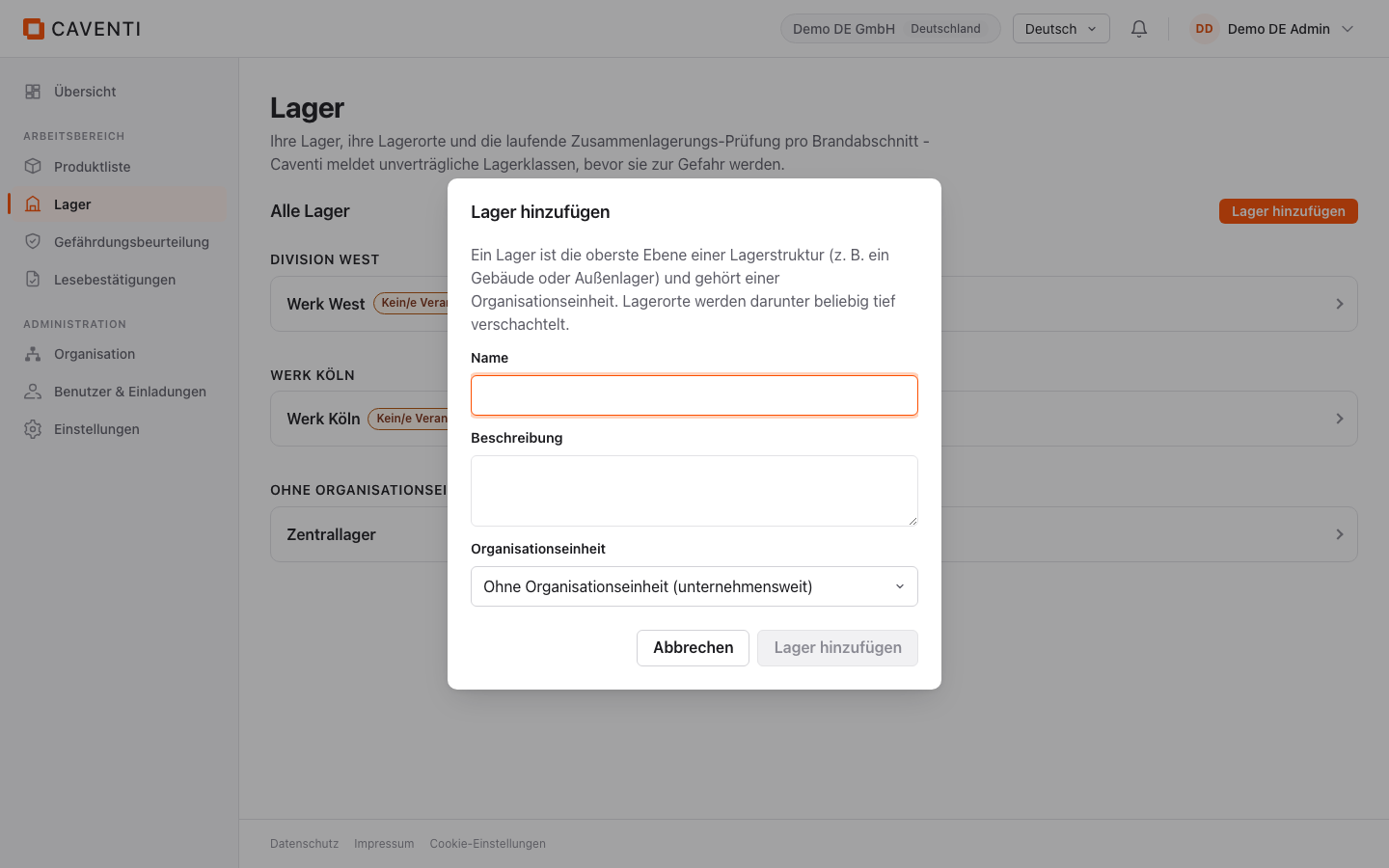
"Lager hinzufügen" opens a small dialog with a name and an optional owning unit; after creation you land directly in the new, still empty site. Inside the site, "Lagerort hinzufügen" creates a location.
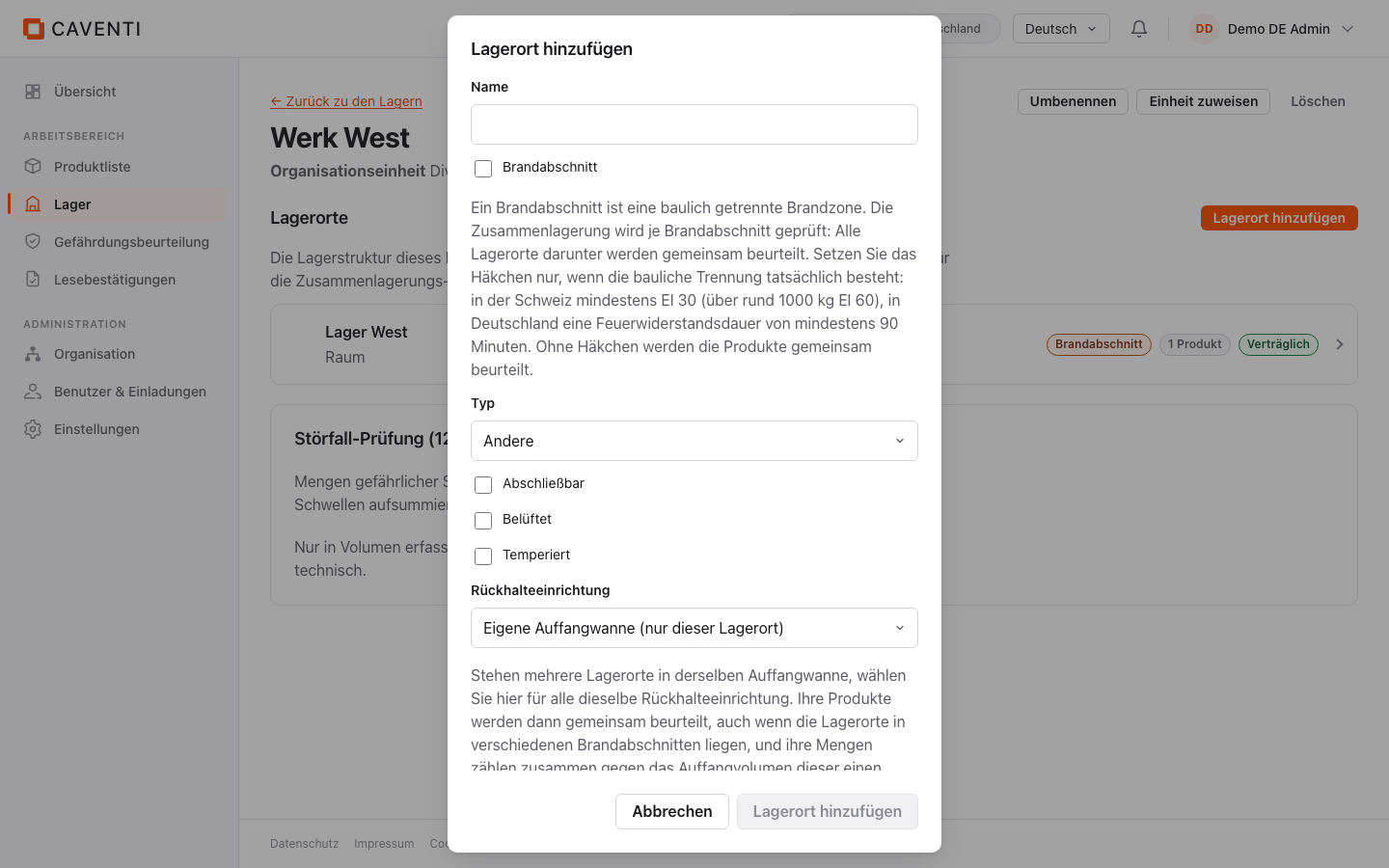
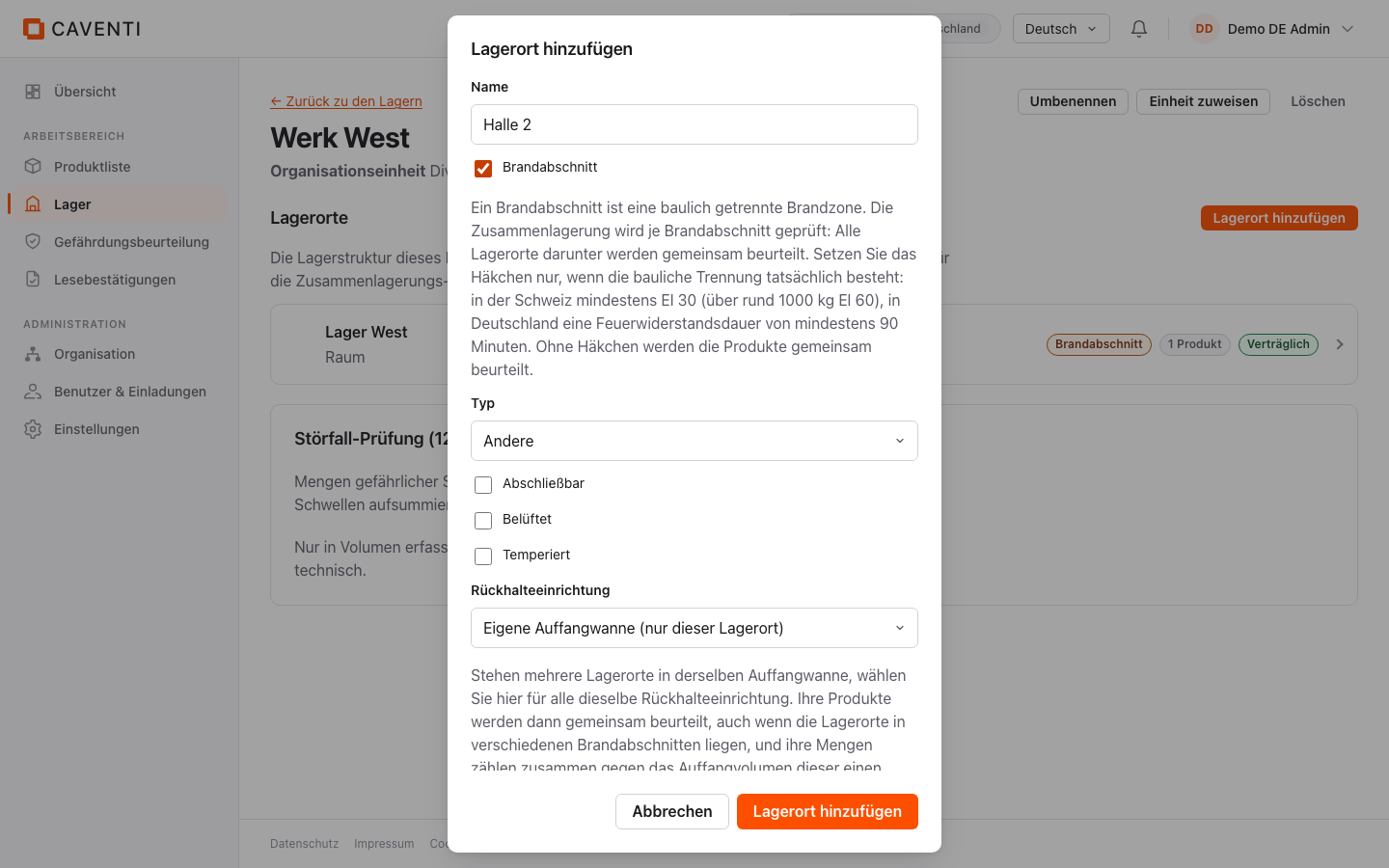
In the location dialog the "Brandabschnitt" checkbox is off by default; you tick it to run the location as a fire compartment, that is a structurally separated fire zone. Joint storage is checked per fire compartment: every location beneath it is assessed together. The dialog additionally offers a "Typ" (default "Andere"), the switches "Abschliessbar", "Belüftet" and "Temperiert", and an "Auffangvolumen (L)" field for a sump's retention volume.
The location in detail
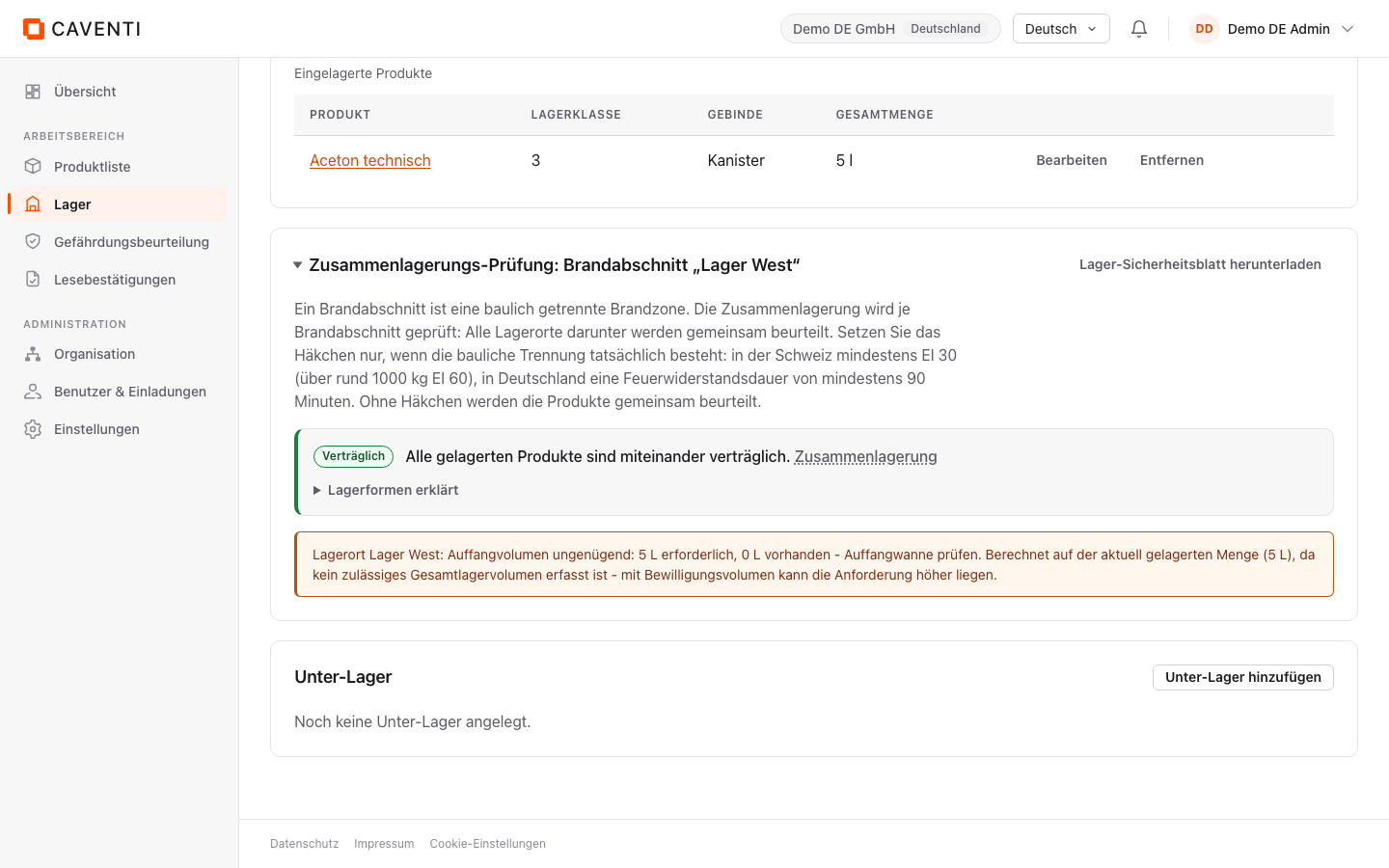
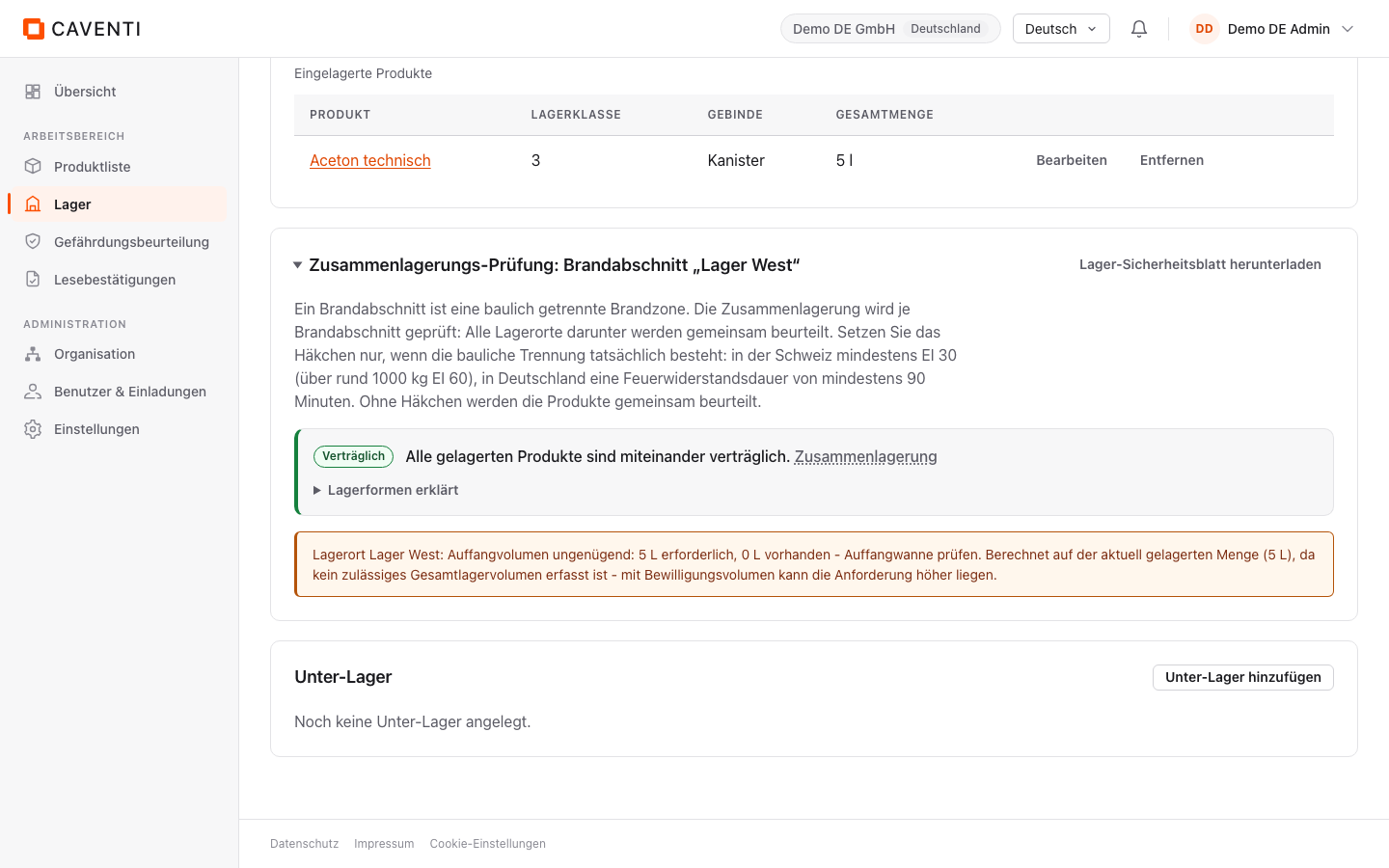
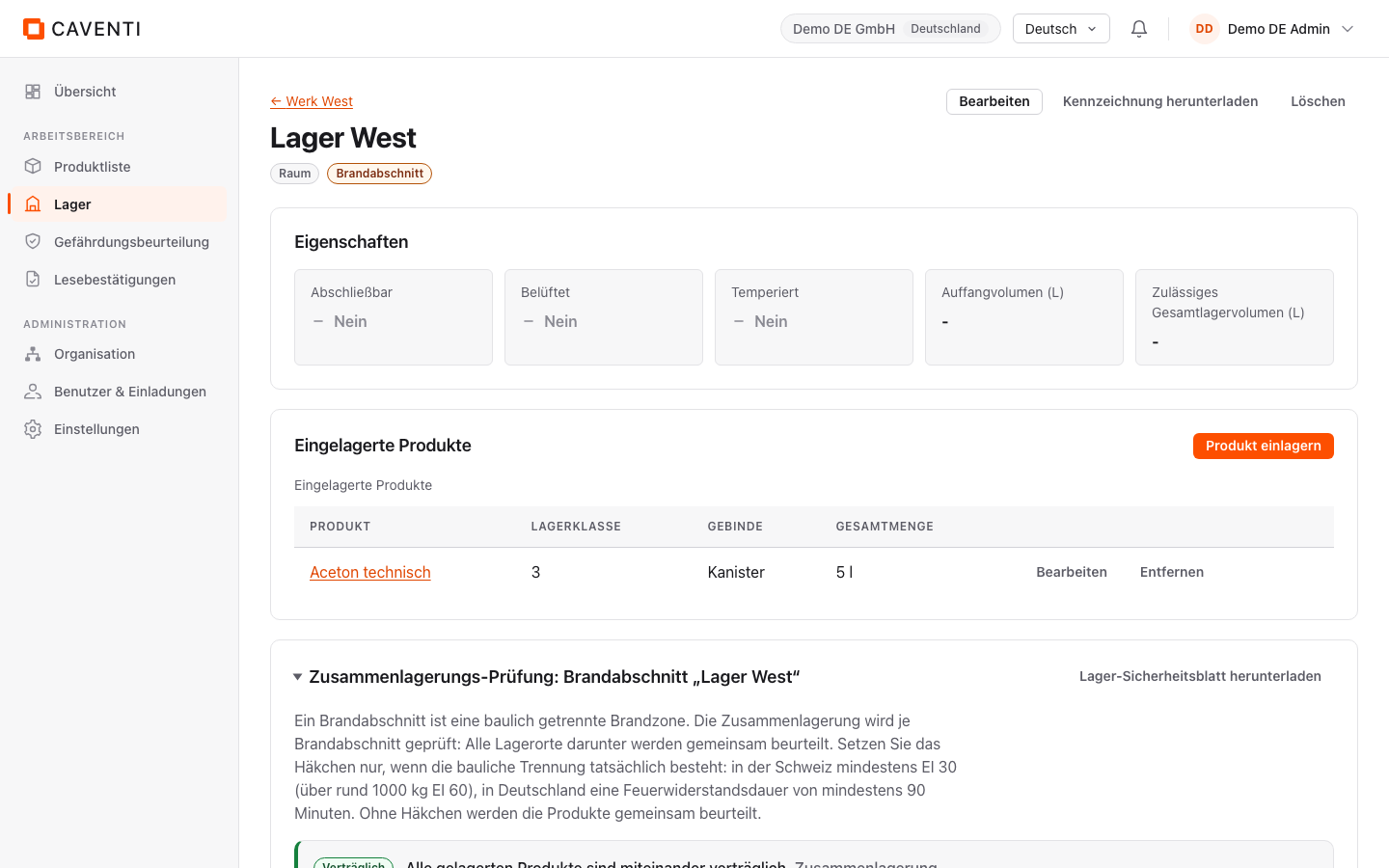
The location page bundles everything for one place: the header with the tags (for example "Andere" and "Brandabschnitt") and the actions "Bearbeiten", "Kennzeichnung herunterladen" and "Löschen"; the "Eigenschaften" section with four tiles (Abschliessbar, Belüftet, Temperiert, Auffangvolumen); the "Eingelagerte Produkte" table (columns Produkt, Lagerklasse, Gebinde, Gesamtmenge); the "Zusammenlagerungs-Prüfung" card with the storage safety sheet download; and the "Unter-Lager" section for child locations.
There is no separate audit page: the joint-storage check on this location is the audit. With a single product the card stays green and collapsed; with several products it recomputes and auto-expands when there is a conflict.
Place products
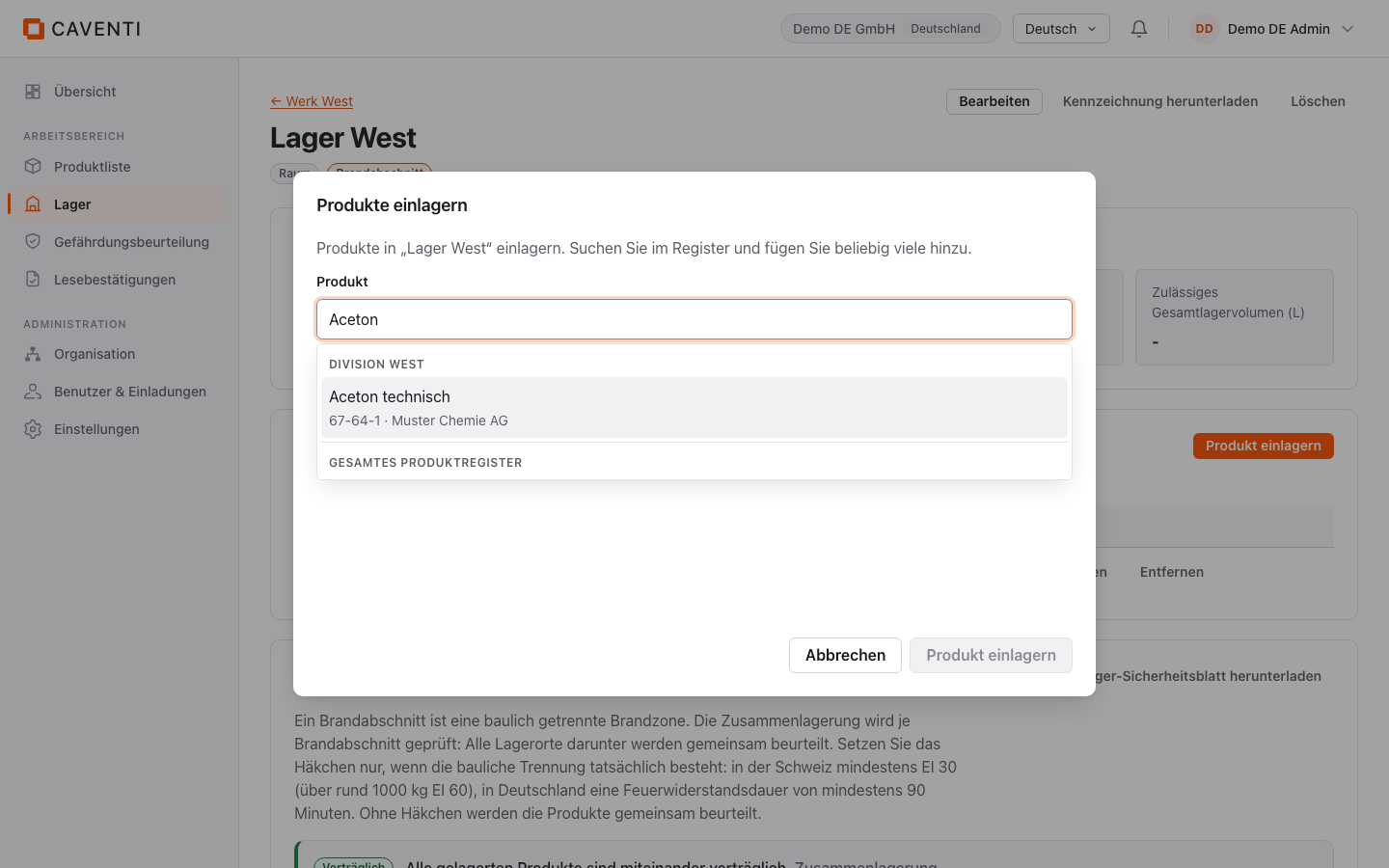
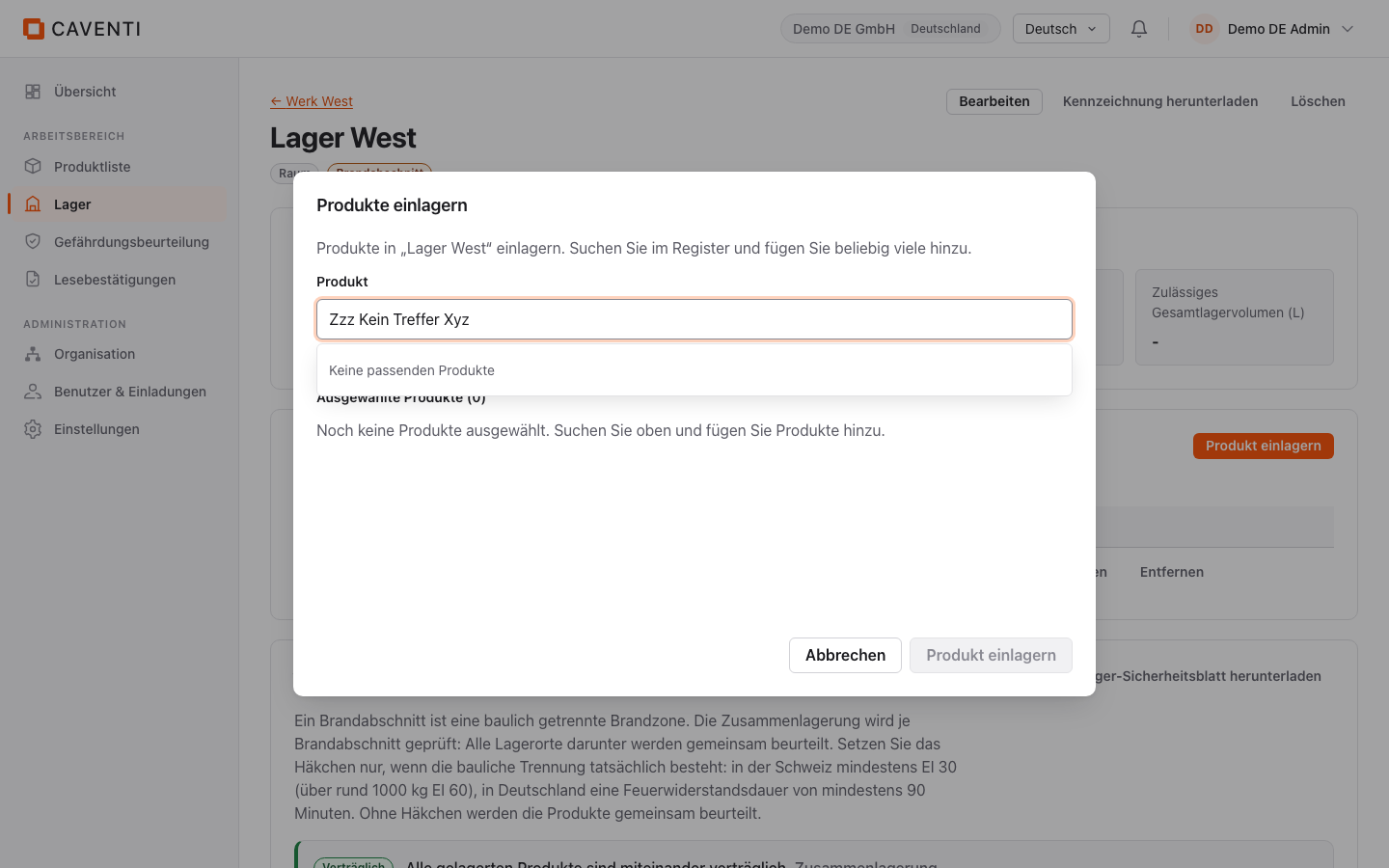
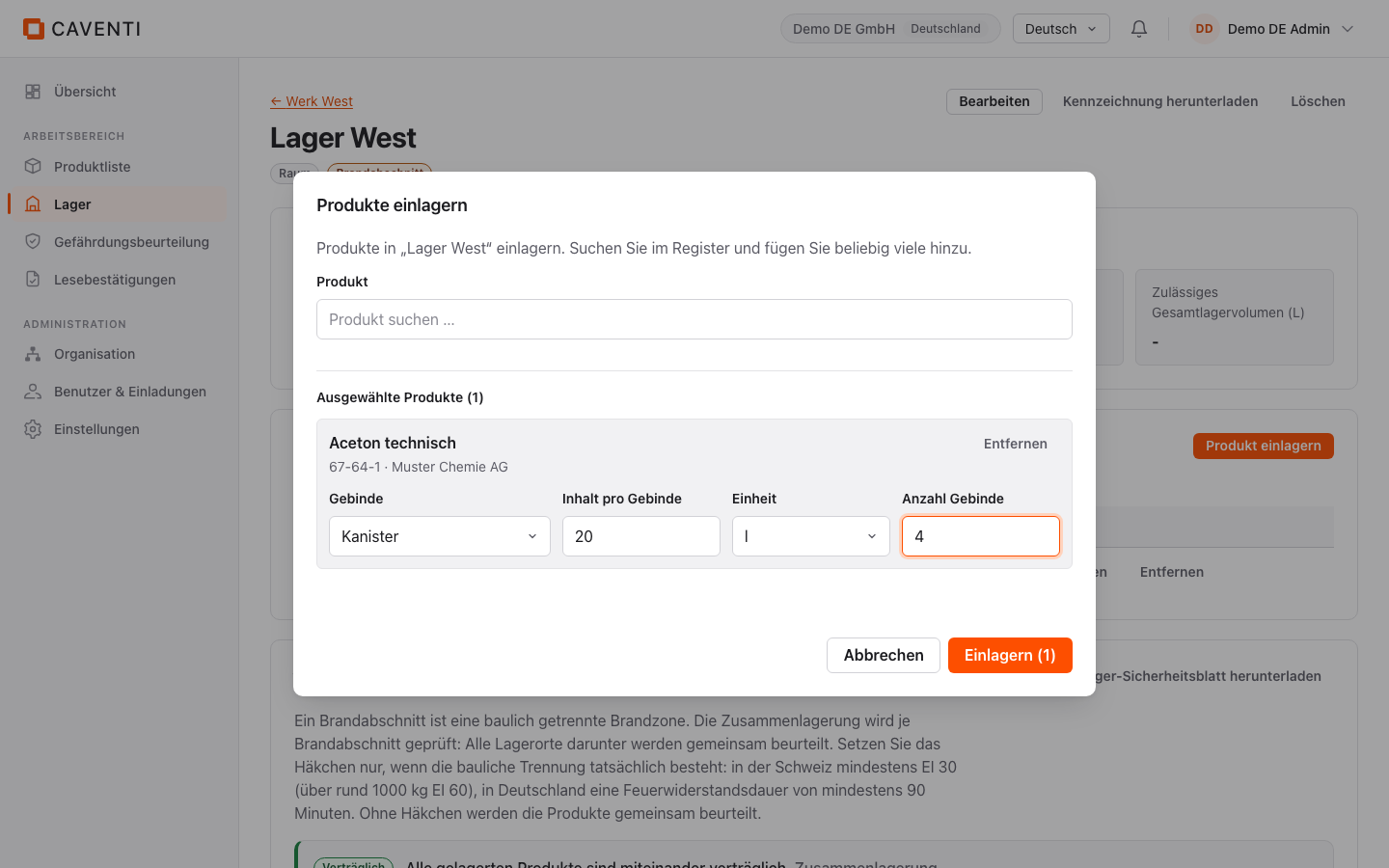
"Produkt einlagern" opens the "Produkte einlagern" dialog. The "Produkt" combobox (placeholder "Produkt suchen ...") searches the company-wide register; each option shows the name plus a "CAS · supplier" line. When nothing matches, "Keine passenden Produkte" appears. Per product you can set Gebinde, Inhalt pro Gebinde, Einheit (l / kg / Stk.) and Anzahl Gebinde and place several products at once; without a quantity the Gesamtmenge column shows "-", with a quantity for example "5 l".
The joint-storage check: the amber verdict
Place two incompatible storage classes (for example a flammable liquid and a corrosive) in the same fire compartment and the joint-storage check expands into an amber verdict. The badge reads "Getrennt lagern", the text names the affected pair and the rule that flammable liquids and corrosives must be stored separately.
The check rests on TRGS 510 (Section 13, joint storage of the storage classes). The explainer link leads to the matching storage-class combination. Caventi does not use a small-quantities allowance: although TRGS 510 (Section 13) does provide small-quantity relief, Caventi deliberately applies the joint-storage rule regardless of quantity.
Print the safety sheets
From the location Caventi produces two printouts. The "Lager-Sicherheitsblatt herunterladen" link in the joint-storage check provides the per-fire-compartment safety sheet with the current verdict and the storage classes involved; the "Kennzeichnung herunterladen" action in the header provides the door or location signage. Both reflect the state of the placed products at the moment of printing.
FAQ
Does Caventi block an incompatible placement?
For a conditional pair (for example storage class 3 with storage class 8), no: no blocking dialog appears, only the amber "Getrennt lagern" verdict with the affected pair. The check flags the problem; the decision on structural separation or extra conditions stays with you.
What is a fire compartment and must I set it?
A fire compartment is a structurally separated fire zone. Joint storage is checked per fire compartment: every location beneath it is assessed together. The checkbox is off by default when you create a location; you tick it to run the location as a fire compartment.
Continue in the documentation
Try Caventi for free
Add your first product and see the derived hazards, the joint-storage check and the operating instruction in minutes.